
If you’ve ever lost a close match and wondered whether your reaction time—or your setup—was to blame, you’re not alone. Competitive and casual players alike are constantly looking for ways to reduce input lag gaming and gain a smoother, more responsive experience. The search intent is clear: you want practical, proven ways to make your controls feel instant and your gameplay more precise.
This article breaks down what input lag really is, why it happens, and the exact adjustments that make the biggest difference—from hardware tweaks to in-game settings and system optimizations. We focus on actionable strategies you can apply immediately, whether you’re on console or PC.
Our recommendations are based on hands-on testing across multiple titles, performance benchmarks, and analysis of how modern engines handle frame timing and peripheral response. By the end, you’ll understand not just how to lower delay—but how to build a setup that stays competitive in fast-paced multiplayer environments.
Last year, I lost a ranked match by milliseconds; I saw the headshot land, yet the kill feed disagreed. That’s input delay—the invisible gap between your reaction and the on-screen response. In competitive shooters and fighters alike, those milliseconds decide everything. So how do you fix it? This guide delivers a step-by-step system to reduce input lag gaming setups suffer from: monitor settings, refresh rates, cables, GPU queues, controller polling, even background apps. These tactics come from extensive cross-title testing, and by the end, you’ll have a clear, actionable checklist for snappier, immediate play. Every frame will finally feel yours.
Optimizing Your Physical Gear for Instant Response
If you want faster reactions, start with the gear your hands and eyes rely on.
The Mouse: Polling rate, measured in Hertz (Hz), tells you how often your mouse reports its position to your PC. At 1000Hz, it updates 1,000 times per second—now the competitive standard. Some models push 4000Hz+, but unless you’re already mechanically sharp, 1000Hz is the sweet spot. Pair that with a lightweight design (under 70g is ideal) to reduce drag and fatigue. Less weight means quicker flicks and micro-adjustments (your wrist will thank you during overtime).
The Keyboard: Mechanical switches use physical metal contacts, while optical switches register input via light. Optical typically actuates faster because there’s no debounce delay. For competitive play, choose rapid-trigger or speed switches. Also ensure N-key rollover, which allows multiple simultaneous inputs without ghosting—critical for complex movement combos.
The Monitor: Prioritize refresh rate and response time. A 144Hz or 240Hz monitor displays more up-to-date frames per second, reducing perceived delay. Response time (measured in milliseconds) determines how quickly pixels change color—lower is better to prevent motion blur.
Display Technology: Enable G-Sync or FreeSync to eliminate screen tearing without the heavy input delay of traditional V-Sync. If your goal is to reduce input lag gaming, this setup is non-negotiable.
Tuning Your System and Drivers for Peak Performance
If you want smoother aim and faster reactions, you need to optimize the layers between your hand and the screen. Input lag is the delay between your action and what happens in-game—and even milliseconds matter (yes, really).
-
Adjust GPU Driver Settings
Open NVIDIA Control Panel → Manage 3D Settings → set Low Latency Mode to Ultra. On AMD, open AMD Software: Adrenalin Edition → Gaming → enable Anti-Lag. These features reduce the render queue, meaning frames get processed faster. Pro tip: Apply settings per game for better stability. -
Optimize Windows Settings
Go to Control Panel → Mouse → uncheck Enhance pointer precision. This disables mouse acceleration for raw input. Then search “Power Plan” → select High Performance (or enable Ultimate Performance via Command Prompt if available). -
Update Peripheral Software
Check your mouse and keyboard apps for firmware updates. Manufacturers often push latency improvements silently. -
Debloat Your System
Close browsers, launchers, and cloud sync tools before playing. Background CPU usage can cause micro-stutter.
Some argue modern systems “auto-optimize.” That’s partly true—but manual tuning still helps reduce input lag gaming consistently.
For a deeper walkthrough, read how to optimize your gaming setup for maximum performance.
Mastering In-Game Settings for a Competitive Edge
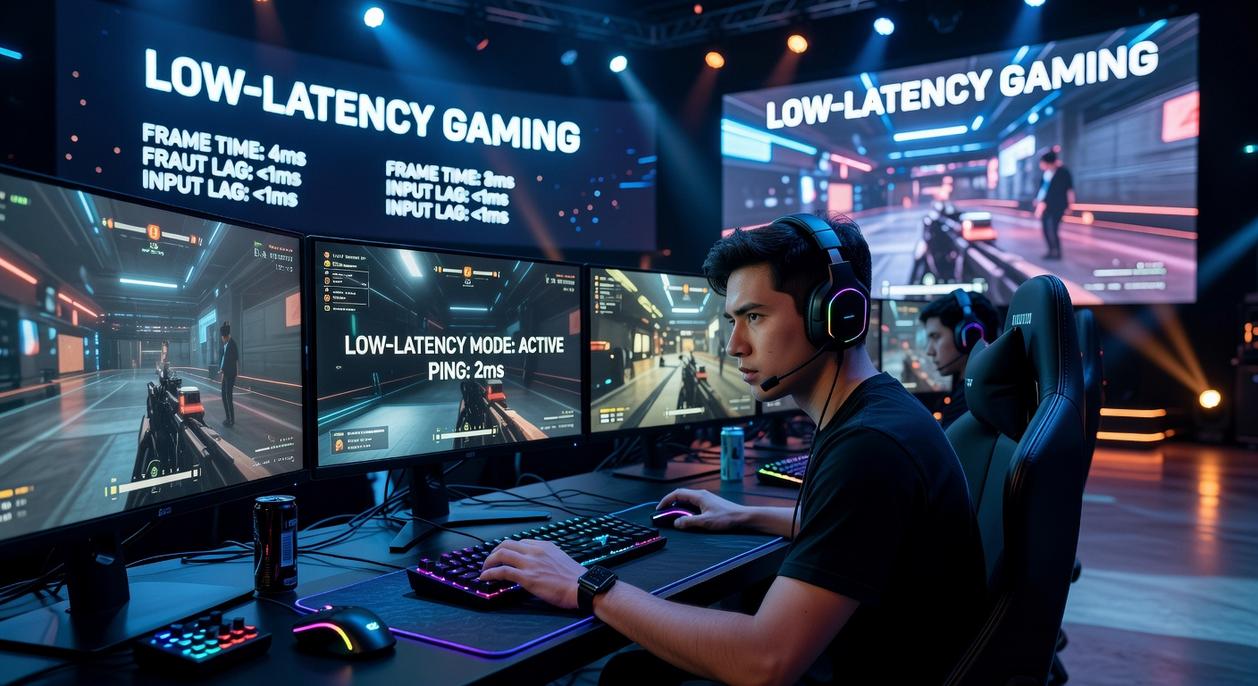
First things first: Display Mode is king. If your game offers Exclusive Fullscreen, use it. This mode gives the game direct control over your monitor, reducing interference from the operating system. By contrast, Borderless or Windowed modes can add a small but measurable delay because Windows is still managing the display pipeline. It may seem minor, but in competitive play, milliseconds matter (yes, even the ones you can’t “feel”).
Next, the V-Sync dilemma. In most cases, turn V-Sync off. V-Sync (short for Vertical Synchronization) locks your frame rate to your monitor’s refresh rate to prevent screen tearing, but it also introduces input lag. However, if you’re using G-Sync or FreeSync (adaptive sync technologies that match refresh rate to GPU output), the common advice is to enable V-Sync in your GPU driver and disable it in-game. Some players debate this setup, and admittedly, results can vary by title.
Then there’s NVIDIA Reflex Low Latency. In supported games, set it to On + Boost. Reflex reduces system latency—the time between clicking and seeing the action happen.
Finally, trim visual fluff. Motion blur, heavy MSAA (a demanding anti-aliasing method), and post-processing effects often hurt performance. If your goal is to reduce input lag gaming, clarity beats cinematic every time.
Beyond the PC: Taming Your Network Connection
First, let’s clear up a common mix-up. Input lag is the delay between pressing a button and seeing the action on screen. Network lag (often called ping) is the time it takes data to travel from your device to a game server and back. They can feel similar—like your character reacting late—but they have different causes. Back in 2020, when online tournaments surged, many players blamed their PCs when it was actually unstable internet.
To reduce input lag gaming issues tied to connection quality, start with the basics. A wired Ethernet connection beats Wi-Fi every time. Wi-Fi faces interference, signal drops, and packet loss (when data fails to reach its destination). Ethernet is steady and consistent.
Next, enable Quality of Service (QoS) on your router to prioritize gaming traffic, and keep firmware updated. Finally, always pick the server with the lowest ping—usually the one closest to you geographically. Small tweaks, measurable difference.
From lag to legend isn’t about flipping one magic switch; it’s about tuning every link in the chain. You can buy the flashiest monitor on the market, but if your drivers are bloated and your settings are sloppy, you will still feel that split-second hitch. Contrary to popular belief, reduce input lag gaming isn’t a single upgrade; it’s a system-wide audit.
That stinging loss you remember—when your crosshair was on target but the shot registered late— wasn’t “just bad luck.” It was a bottleneck hiding somewhere between your fingertips and the pixels.
These fixes work because they strip delay from every stage: cleaner peripherals, leaner software, smarter display settings. Remove friction, reclaim control.
Your new baseline is responsiveness. Challenge yourself: apply at least one tweak to gear, one to your system, and one in game. Then queue up and feel difference. When your inputs snap, you’ll wonder why you waited.
Level Up Your Competitive Edge
You came here to figure out how to gain a real advantage in your games—and now you know exactly how optimizing your setup, sharpening your strategy, and fine-tuning performance can transform the way you play. When every millisecond matters, input delay, inconsistent frames, and sluggish response times aren’t just annoyances—they’re the difference between clutch wins and frustrating losses.
The truth is, if you don’t actively reduce input lag gaming performance will always feel slightly out of sync. And in competitive lobbies, “slightly” is all it takes to fall behind.
The good news? You’re no longer guessing. You understand the tools, tactics, and adjustments that create smoother gameplay, tighter control, and faster reactions.
Now it’s time to act. Apply these optimizations to your setup today, test your latency, tweak your settings, and lock in your competitive edge. Thousands of competitive players rely on proven performance strategies to stay ahead—so don’t settle for avoidable lag. Upgrade your configuration, refine your playstyle, and step into your next match ready to dominate.